User guide
Everything BeatFractal does, in the order you will use it: open a song, choose the visuals, add your touches, and render a music video. Everything happens in your browser; your music never leaves your device.
The studio at a glance
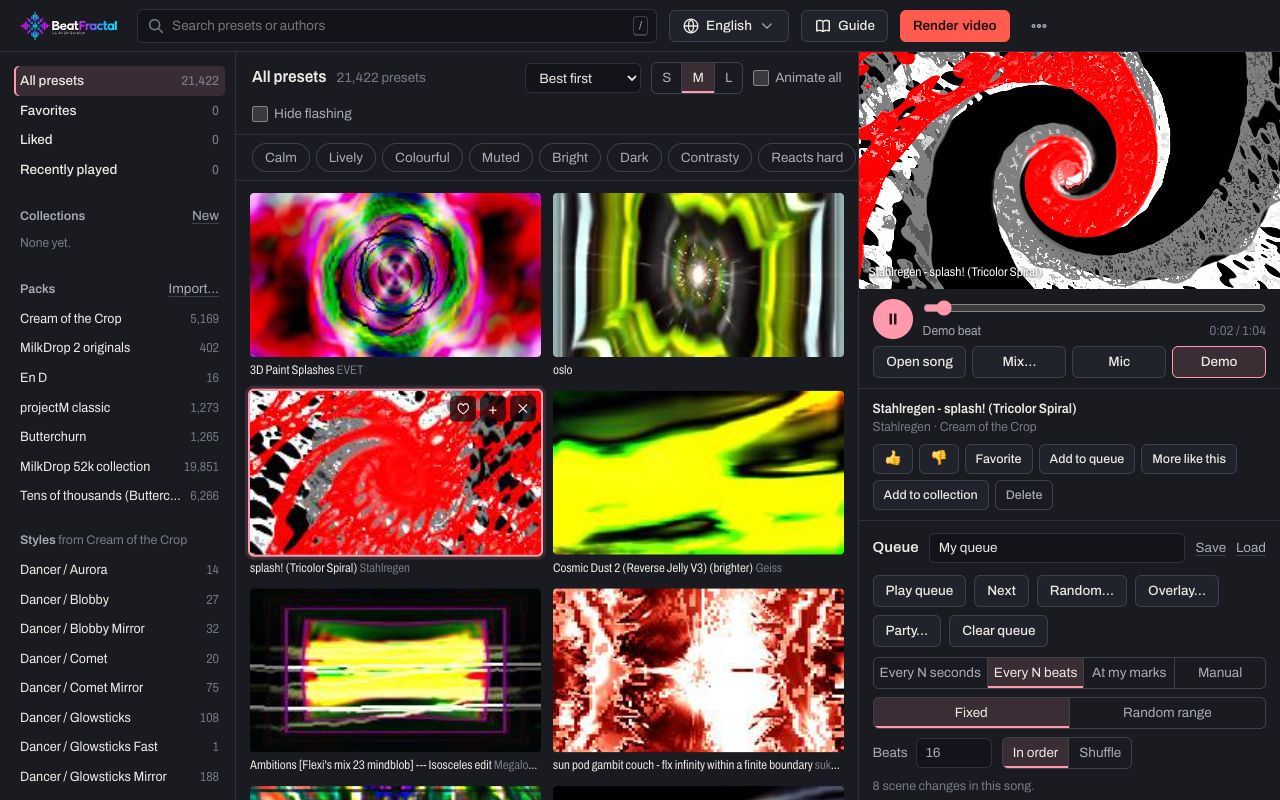
The studio has three parts. The library holds over 21,000 visualizers (MilkDrop presets); hover or tap any thumbnail to see it move. The stage shows the visuals live with your song, exactly as they will be rendered. The queue is the list of visuals your video will use, and the rules for when they switch.
On a phone, the library and the queue are two tabs. Press Full screen (or F) to watch the stage on its own. New to it? New here? How it works on the empty stage, or How to use BeatFractal in the menu, walks you through the six steps and points at each control. The menu also switches between the dark and light themes.
Open your music
Open song plays an MP3, WAV, FLAC or M4A file from your computer or phone. It is decoded right in your browser; nothing is uploaded. Demo plays a generated test beat if you just want to try things, and Mic listens to the room through your microphone (for live visuals; it cannot be rendered).
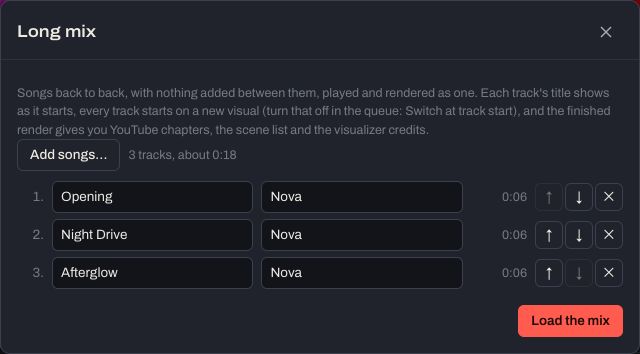
Mix… joins several songs back to back into one long video. Add the songs, put them in order with the arrows, and correct the titles and artists (they come from the file names). Load the mix decodes and joins them with nothing added between them. Each track's title can show as it starts, and with Switch at track start on, every track starts on a new visual. After the render, BeatFractal gives you ready-made YouTube chapters for the mix.
Browse the library
Search by name or author, or browse by Packs, Styles, Authors and your own Collections in the side panel. The mood chips (Calm, Lively, Colourful, Muted, Bright, Dark, Contrasty, Reacts hard) narrow the library to presets that look and move that way; chips on different scales combine, and Clear removes them. Sort orders the presets, and the S, M and L buttons change the thumbnail size. Animate all plays every thumbnail at once.
Hide flashing hides presets that flash more than three times a second with some music. Flashing that fast can trigger seizures in people with photosensitive epilepsy, so consider leaving them out of videos you publish.
Click a thumbnail to play it on the stage. Under the stage you can then give it a Thumbs up (the random picker favours it) or a Thumbs down (the random picker skips it), make it a Favorite, Add to queue, find More like this (presets that look and move like it), Add to collection, or Delete it from your library (you can undo it straight away, and get it back later).
Build the queue
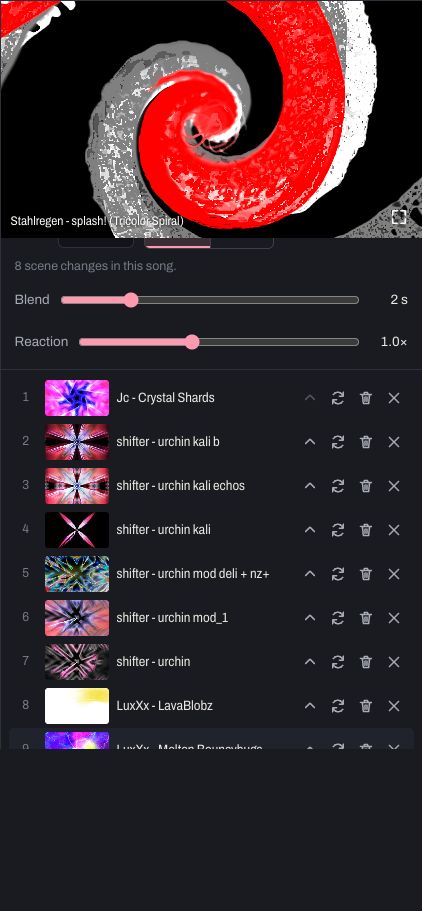
Add presets with the + on a thumbnail (or press Q while one is under the pointer). In the queue you can move them up, take them out, swap one for a random replacement, or send one to the trash. Play queue plays the song with its visuals; Next (N) jumps to the next one. Save and Load keep named queues for later, and Clear queue empties it.
Choose when the visuals switch:
- Every N seconds, or Every N beats (counted in the song's beats, so every switch lands on one). Random range varies the time between switches within a minimum and maximum; Reshuffle deals new switch times and a new order.
- At my marks: play the song and press Tap to mark (or M) wherever the visuals should change. Undo last removes the last mark.
- Manual: only when you press Next.
In order or Shuffle sets the order. Blend is how long one visual fades into the next, and Reaction is how hard presets react to the music (1× is the preset as its author wrote it).
Pick at random, or match the song
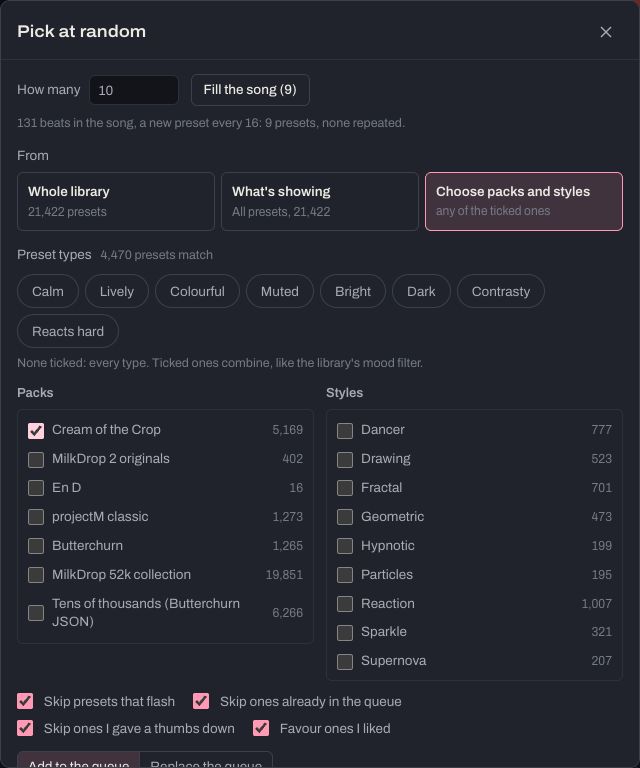
Random… fills the queue for you. Choose where to pick from (Whole library, What's showing, or Choose packs and styles), the preset types you want, and whether to skip presets that flash, ones already in the queue, or ones you gave a thumbs down, and to favour ones you liked. Then either:
- Pick a number of presets, added to the queue or replacing it. Fill the song sets the number to exactly what the song needs with your switching rule, so nothing repeats.
- Match the song fills the whole song in one go with presets that suit each part of it. It listens to the song, splits it where the music changes (a quiet intro, a chorus, a drop), and picks calm presets for quiet parts and ones that react hard for the loud ones, with a new visual where each part starts. Then it plays the result quickly to check it, and swaps any preset that goes black or barely moves with the music. The window closes onto your new queue, with Undo. Shuffle turns off, because each preset sits where its part of the song is.
Album art, title and logo
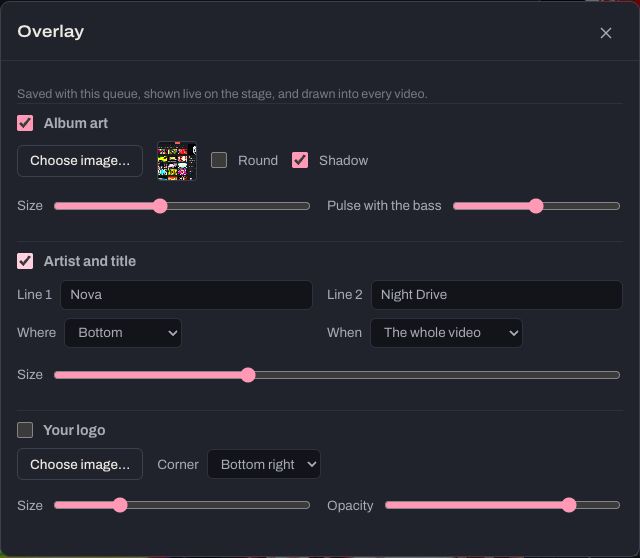
Overlay… adds three things on top of the visuals, each with its own switch: Album art (round or square, with a shadow, sized, and pulsing with the bass if you like), the artist and title (filled in from the file name; placed at the bottom, top, centre or under the art, for the whole video or the first 8 seconds), and your logo in a corner, with its size and opacity. It is saved with the queue, shown live on the stage, and drawn into every video. In a mix, the title follows each track.
Render a video
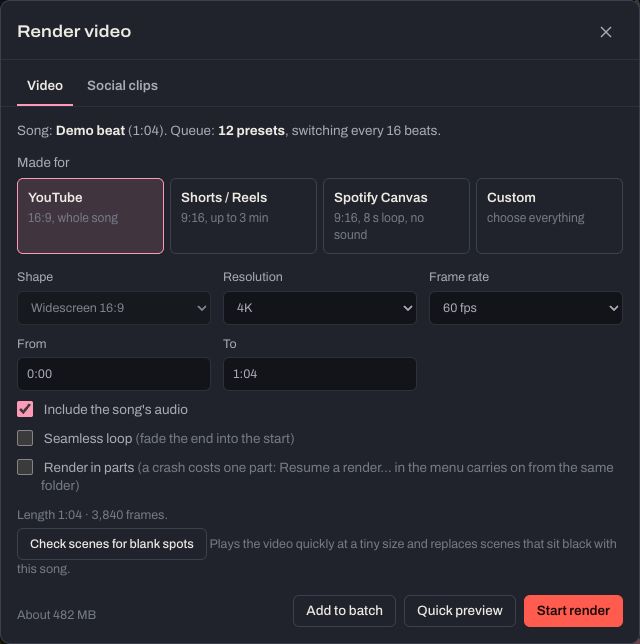
Render video makes an MP4. Choose what it is Made for: YouTube (16:9, the whole song), Shorts / Reels (9:16, up to 3 minutes), Spotify Canvas (9:16, an 8-second loop with no sound), or Custom to choose everything: shape, resolution, frame rate, and the stretch of the song (From and To). Include the song's audio puts your song in the video; Seamless loop fades the end into the start.
Pro starts at 4K and 60 fps wherever your computer can render them. Shorts / Reels starts at the first minute of the song (0:00 to 1:00); change From and To, or let Find the best moment choose.
Quick preview makes a small, fast render to check the timing and framing. Start render makes the real one. Keep the tab open: the screen stays on while it renders. It keeps rendering if you switch to another tab or window, but the computer may then go to sleep on its usual schedule, so for long renders set it never to sleep. Big videos save straight to a file you choose. When it is done you can Download MP4, copy ready-made YouTube chapters (for a mix) and Visualizer credits for your description, and Download schedule (every scene with its preset and author). Add to batch keeps this song, queue and settings to render later with others.
Shorts, Reels and Canvas
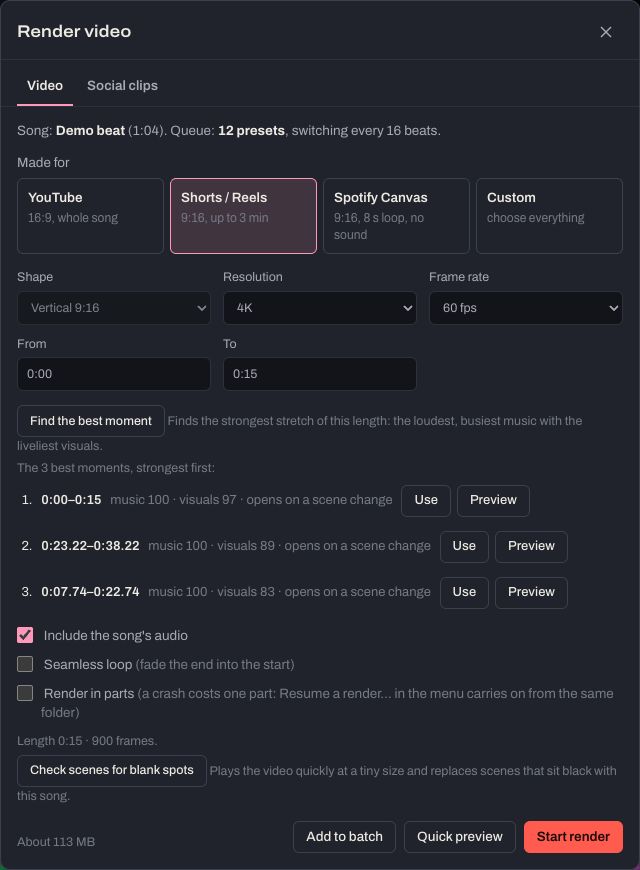
For a Short, a Reel or a Canvas you only need part of the song, and Find the best moment finds the strongest part for you. Set From and To to the length you want, then press it: BeatFractal listens for the loudest, busiest music (a chorus, a drop) and quickly plays the visuals there to judge their colour and movement. You get the three best stretches, each starting on a scene change where there is one; Preview plays one (press Stop to end it early), Use sets From and To to it. With a mix, One per track finds the best moment of each song.
YouTube Shorts can be up to 3 minutes long, but past 60 seconds a Short with any copyright claim is blocked worldwide: keep clips with music you don’t own under a minute. For a Spotify Canvas, a free render is for previewing the loop: its BeatFractal.com mark is a web address, and Spotify’s Canvas policy asks you not to direct listeners to websites. Render the Canvas you upload with Single Video or Pro.
For vertical videos, Framing for vertical chooses what the 9:16 frame shows: cut from a widescreen render (move it with zoom, left/right and up/down; you see the frame live) or with the presets drawn natively at 9:16.
Check scenes for blank spots plays the planned video quickly at a tiny size before you render, and replaces any scene that sits black with this song (3 seconds or more). Match the song already does this; use it for queues you built by hand.
Faster checks, in the menu, plays these checks, Match the song and Find the best moment in two parts at once, on more of your processor: a long check takes about a quarter less time. It starts on where the computer has the cores and memory for it; turn it off if your computer slows down while a check runs.
Several songs for the batch
To get a run of videos or clips ready (a week of TikToks, say), choose Several songs for the batch… in the menu. It takes three steps.
1. Choose the songs. Press Fill songs… or Match songs… and choose the song files. Each song gets its own queue of visuals: Fill picks presets at random, enough for the whole song; Match picks ones that suit each part of the song and checks them against the music, which is better and slower. The visuals come from what Random… has selected: Change… opens it for just that, and Use these for my songs brings you back. Each queue has your queue's switching rule, blend and overlay, and the artist and title from the song's own file name. The song and queue you have open are not touched. Keep the window open while it works; Stop keeps the songs done so far.
2. Set each one up. Set up the songs opens the first song in Render video, with its queue. Choose its settings on either tab. On Social clips, each song has its own hook and start (the platforms, length, mark and end card carry over from one to the next), and Find the drop and Find the best moment work as usual. While a prepared song is open, Add to batch is the main button: press it and the next song opens by itself. Prepared songs, at the top, lists them all with a ✓ for each in the batch; choose one to open it. Remove takes the open song off the list and Clear the list takes them all off; songs already in the batch stay there.
Tick Same hook for every prepared song (shown while a prepared song is open) and each song after it opens with the hook you just used; [song] and [artist] still fill in for each. Each social clip in Batch renders shows its hook, or “no hook”, so you can check them all before Render all.
3. Render them all. Open the batch, in this window or under Prepared songs once every song is in, shows Batch renders, where Render all renders every video and clip in one go.
Long videos, and never losing your work
Render in parts (in Chrome or Edge on a computer) is for long videos, such as an hour-long mix in 4K. The video is rendered in parts of about five minutes into a folder you choose, then joined into one MP4. If the browser crashes or the computer sleeps, you lose one part at most: choose Resume a render… in the menu, pick the folder, and BeatFractal brings back your song, queue and settings and carries on from the last finished part.

The studio keeps what you are working on as you go: the songs, the mix, the queue, the overlay and the render settings. If the tab closes or crashes, the next visit offers it back: Restore brings everything back, Not now answers it until you have done new work, and Don't ask again turns the offer off (the menu turns it back on).
Save project in the menu saves all of it as a .beatfractal file, with your art and logo inside it; Open a project… opens it again on any computer. Your music is not inside the file: it asks for the songs and finds them by name.
Check a video file
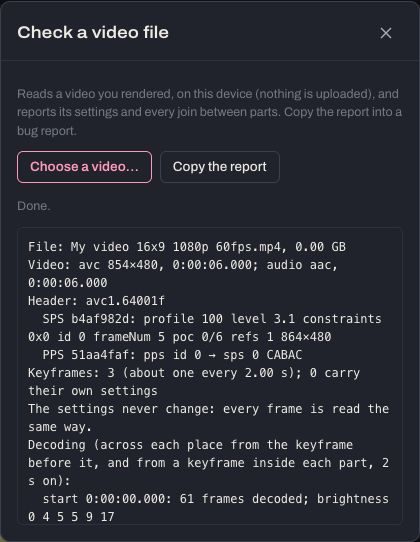
Check a video file… in the menu reads a video you rendered (on your device; nothing is uploaded) and reports: its settings, every join between parts, whether it plays back cleanly from any point, and any black spots with their times. If a video joined from parts will not play properly after the first part, it offers Repair this video…, which writes a fixed copy without rendering again. Copy the report puts it on your clipboard to send us.
Party mode
Party… turns the studio into a visualizer for a room: full screen, no controls, one song after another, with the visuals changing on their own and the screen staying on. Choose songs or a whole folder, whether the visuals are random picks for every song or your queue, how often they change, and whether to shuffle the songs, start over after the last one, and show each song's title. While it plays: N next song, B previous, V next visual, Space pause, Esc stop.
Your presets, backups and the menu
Batch renders… renders everything you added with Add to batch, videos and social clips alike, one after another; keep the tab open until the last video is done.
Import your own presets… adds your own MilkDrop presets (.milk or .json). They are converted and checked in your browser, kept on your device only, and show up under Packs as My presets.
The menu can also download your deletions and restores, or a full backup of your favourites, collections, ratings and queues, and import them again. Where the presets come from credits the packs and their authors, and Keyboard shortcuts lists every key.
Plans and your account
- Free: every visualizer and every feature, with renders in 480p and a small BeatFractal.com mark in a corner.
- Single Video: one project (one song) in full quality, 1080p or 4K, with no mark, and re-renders for 7 days. Choose 1080p or 4K in the render window and unlock the project right there; you set it up for free first.
- Pro: every project in 1080p or 4K, with no mark, monthly or yearly. Cancel any time; it stays active until the end of the period you paid for.
Your account page (from the menu) has your plan, your email and password, two-step sign-in, your signed-in devices, a download of your data, and account deletion. Refunds are within 14 days, no questions asked.
Payments go through Stripe. Your receipt comes from Link, Stripe's checkout service, which is the seller on every purchase, so a charge from Link is your BeatFractal purchase.
Tips and help
- BeatFractal works in a recent version of Chrome or Edge, or Safari 17 or later, on a computer, tablet or phone. Long 4K renders need a desktop with a decent graphics chip; Render in parts needs Chrome or Edge on a computer.
- What you watch is what renders: play the queue and seek around to check the moments that matter.
- Keep the tab open while rendering. It carries on in the background, but for long renders set the computer never to sleep.
- Use music you own or are allowed to use. BeatFractal never sees your song; platforms like YouTube check what you upload.
Found something broken, or want a feature? Report a bug or suggest a feature… in the menu sends us a message (with your browser and screen size if you allow it; never your songs or file names), or email [email protected].
Social clips for TikTok, Instagram and Shorts
The Social clips tab of Render video makes short clips to post (the Video tab is everything above). Tick the platforms: TikTok, Instagram Reels, the Instagram feed at 4:5 or square, YouTube Shorts. Choose a Length (15, 30 or 60 seconds; 90 for Reels) and a Frame rate, and press Export all. Each clip is drawn at its platform's own shape, never cut from a widescreen render, and gets its own Download button; Make more goes back to the settings.
Find the drop starts the clip two bars before the song's biggest drop and tells you where the drop lands in the clip; Find the best moment also watches your visuals and offers the three best stretches, each to use or hear. The visuals are your queue, switching about every 4 s (or 2, or 8) on the downbeat; with Switch on the drop, a switch lands on the drop and your most intense preset plays from there. Preview with sound makes a small, quick copy of the clip and plays it in the preview, exactly as it will be; while it plays the button says Stop. Untick Include audio for a silent clip, to add a licensed sound in the app instead.
The words are yours: a Hook for the first 2 seconds (type one or pick one from Hooks; Save as hook adds what you typed to the list, under Your hooks, and Remove takes one of yours out; [song] and [artist] fill in from the file name, and emoji work), Your mark in a corner for the whole clip, with your logo from Overlay…, and an End card that fades in over the last 2 seconds. All of it sits inside the part of the screen each app leaves clear: Show safe zones shades the parts the app covers in the preview (pick the platform under Preview); the shading is never in the clip. Free clips are 480 pixels on the short side with a small BeatFractal.com mark; Single Video and Pro make them at 1080, without it.
Your hooks are kept with your account, so they are there in any browser you sign in to. If Hook is ticked but has no text, Add to batch says so before adding a clip without one; press it again to go ahead.
Choose where each one sits: Hook position (top, middle or bottom), Mark position (any corner) and End card position (middle, top or bottom). Every position stays inside each app's safe area, so a vertical clip keeps them clear of its buttons and captions by itself; the preview shows where they land.